The best golf simulator software is the option that works reliably with your launch monitor, runs well on your computer, and offers the golf you actually want to play. A huge course library is not much help if your device cannot connect, and impressive graphics can become frustrating if every shot stutters.
This guide explains compatibility, course selection, practice tools, subscriptions, hardware, and internet requirements. Whether you are building your first home simulator or replacing a bundled app, start with compatibility before comparing features.
1. Start With Launch Monitor and Device Compatibility
Your launch monitor measures the shot. Simulator software uses those measurements to calculate ball flight and display the result on a virtual range or course. Some launch monitors include their own software, while others support additional third-party applications.
Do not assume that a popular simulator program works with every launch monitor. Support can depend on the exact hardware model, its firmware, your operating system, and the subscription attached to your device.
Check the complete connection chain
- Launch monitor model: Confirm the exact model, not just the manufacturer.
- Software support: Look for an official compatibility list from both the software provider and launch monitor manufacturer.
- Required membership: Check whether your launch monitor needs a paid plan to connect to third-party software.
- Computer or mobile device: Confirm the supported operating system and hardware requirements.
- Connection method: Establish whether the setup uses USB, Bluetooth, Ethernet, local Wi-Fi, or a device-specific wireless connection.
- Extra components: Identify any required connector application, adapter, or account before purchasing.
Be especially careful with community-created connection methods. They may be useful, but they are not necessarily officially supported and can change after software or firmware updates.
Also check which shot types the complete setup supports. Full swings, chips, and putts may not behave equally well on every device. Putting limitations can come from the launch monitor or its integration rather than the simulator software itself.
2. Understand the Main Software Options
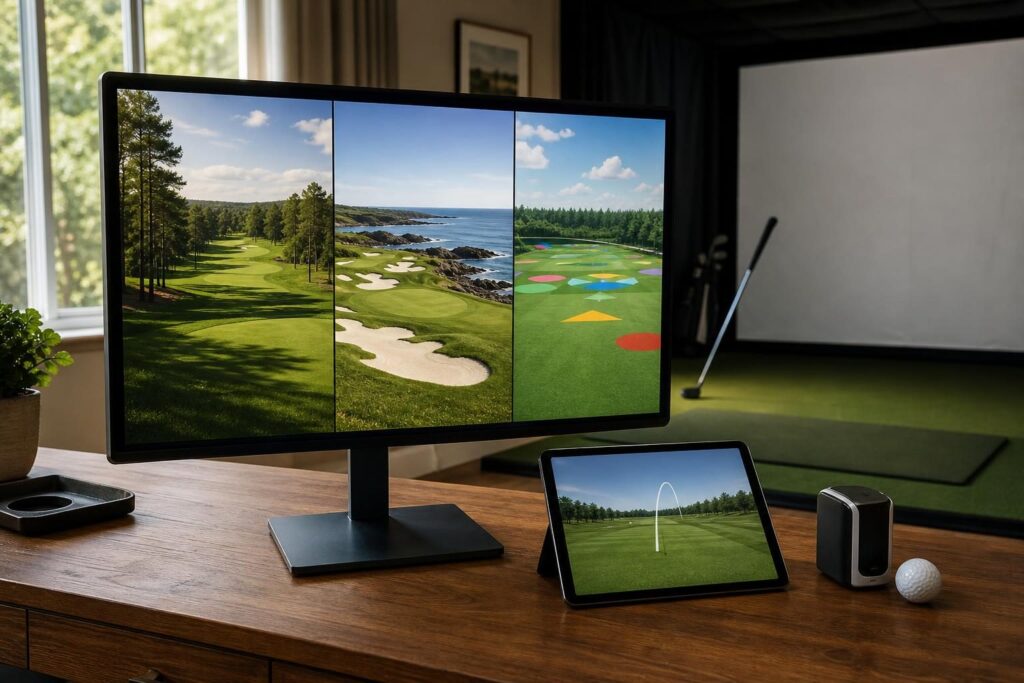
GSPro, E6 CONNECT, and Awesome Golf are established options with different strengths. They are useful starting points, but your launch monitor’s native software may also provide everything you need for basic practice.
| Software | Main appeal | What to check carefully |
|---|---|---|
| GSPro | Course-focused simulation, a substantial community-built course ecosystem, and practice features | Windows PC requirements, supported launch monitor connection, and subscription terms |
| E6 CONNECT | Virtual course play and a range of hardware integrations | Device-specific packages, supported platforms, included courses, and license options |
| Awesome Golf | Accessible practice, target challenges, and casual games | Supported devices, platform availability, course content, and purchase options |
GSPro: course play and a capable gaming PC
GSPro is a strong candidate for golfers who prioritize simulated rounds, course variety, and an active community around course creation and competition. It also offers practice environments, so it is not limited to playing full rounds.
Its graphics demands deserve attention. A deeper GSPro review should examine course selection, practice features, and PC requirements together, because the experience depends partly on your hardware and display resolution.
E6 CONNECT: compare the exact package
E6 CONNECT supports a range of launch monitor integrations, with Windows and iOS availability depending on the device and package. However, different purchases do not necessarily include the same content or capabilities.
When evaluating E6 CONNECT, focus on the particular license offered for your hardware. Course access, subscriptions, device support, and included features matter more than a general description of the platform.
Awesome Golf: approachable practice and games
Awesome Golf combines practice tools with approachable challenges and game modes. It is worth considering when a simulator will be shared by serious golfers, beginners, and family members.
Look beyond the colorful presentation: assess the shot information, practice workflow, and available course play. A detailed Awesome Golf review should consider both its training value and its appeal to occasional players.
3. Compare Course Libraries, Graphics, and Realism
Course count is an easy headline to compare, but it is rarely the most useful measure. A smaller collection of courses you enjoy may offer more value than a large library you rarely explore.
Look at access, variety, and quality
- Included versus extra courses: Find out what your specific license unlocks.
- Course styles: Look for a mix of layouts, terrain, difficulty, and playing lengths.
- Real and fictional designs: Both can be enjoyable; a recognizable name does not automatically guarantee a better simulation.
- Community-created content: This can expand variety, although detail and optimization may differ between courses.
- Download requirements: Check whether courses must be downloaded individually and how much storage they need.
Separate visual detail from ball-flight accuracy
Realism depends on more than attractive trees and water. The launch monitor’s measurements, ball-flight calculations, lie effects, green behavior, and game settings all influence the result.
No software can recover every detail that the launch monitor does not measure reliably. Before blaming the simulation for unusual shots, check alignment, indoor setup requirements, ball condition, and any manufacturer guidance.
Adjustable tees, difficulty settings, putting options, and generous concessions can also make a bigger difference to everyday enjoyment than maximum graphical detail.
4. Match Practice Tools and Games to Your Household
The best golf simulator software for a dedicated practice player may not be the best choice for children or guests. Think about who will use the room and what a typical session should look like.
For structured practice
A useful practice environment makes it easy to hit repeated shots, choose targets, and review results without unnecessary menus.
- Look for clear carry-distance and dispersion displays.
- Check which ball and club data your launch monitor actually supplies.
- Consider target practice, approach shots, and short-game options.
- Check whether sessions can be saved or reviewed later.
- Make sure the displayed units and available adjustments suit your training.
Software cannot display measured club data that your hardware does not provide. Distinguish measured values from estimates when comparing practice screens.
For kids and family game nights
Quick turns, simple scoring, and short challenges usually work better than a demanding full round. Adjustable difficulty and forgiving settings help beginners enjoy themselves without matching an experienced golfer’s distances.
Awesome Golf deserves a look for game-led sessions, while E6 CONNECT may appeal to households seeking casual play alongside virtual rounds. An Awesome Golf versus E6 CONNECT comparison should focus on the specific games and practice modes included in each package.
For children, remember that software suitability does not replace physical safety. Maintain a clear hitting area, supervise club use, and keep waiting players outside the swing zone.
5. Calculate Subscription Costs and Total Ownership Cost
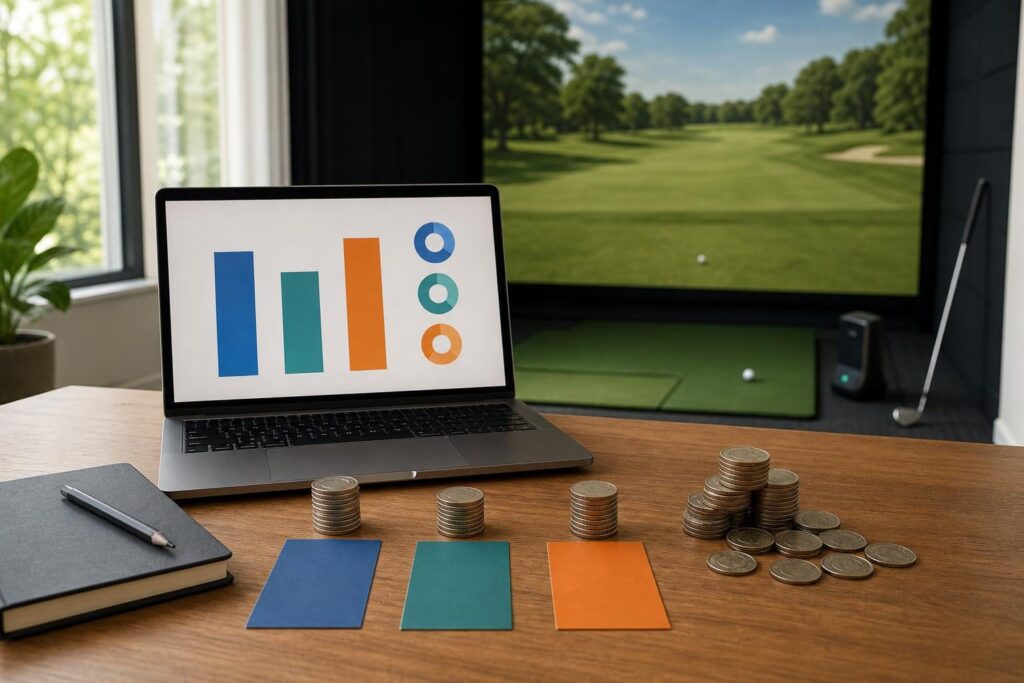
Simulator software pricing can be confusing because the advertised software fee may be only one part of the bill. Compare the total cost of keeping your complete setup usable, not just the checkout price.
GSPro is sold through an annual subscription model. E6 CONNECT pricing and licensing vary by package and hardware integration. Awesome Golf offers subscription and lifetime purchase options, but availability and terms should be checked for your supported device and purchase channel.
Exact prices, regional taxes, bundles, and promotions can change. Check the official purchase pages and your launch monitor account before committing.
| Cost category | What to verify |
|---|---|
| Software license | Monthly, annual, or one-time payment; renewal terms; included features |
| Launch monitor membership | Whether a paid hardware plan is required for third-party access |
| Course content | Included library, optional packs, and subscription-only access |
| Computer or tablet | Whether your existing device meets the recommended requirements |
| Additional access | Separate competition memberships, optional services, or extra licenses |
Compare the first year and later renewals
A useful calculation is: software payment + required launch monitor membership + desired content + necessary hardware upgrades. Calculate that for the first year, then repeat it using renewal costs rather than introductory offers.
A bundled license can reduce the initial bill, but check whether it includes the full program, a limited course selection, or a time-limited trial.
Before buying a lifetime or perpetual license, read what that promise covers. Continued use of a purchased version is not necessarily the same as receiving every future update, course, online service, or replacement product.
Also establish what happens when a subscription expires. Do not assume you can continue playing downloaded courses or retain the same access without an active plan.
6. Choose Suitable Hardware and Prevent Lag
Compatibility tells you whether software can run. Hardware requirements help determine how well it will run. A computer that launches the program may still struggle with detailed courses or a high-resolution projector.
Match the computer to the output resolution
For GSPro in particular, compare gaming PCs against the developer’s current recommendations for your intended resolution. A setup targeting 1080p has different graphics demands from one targeting 1440p or 4K.
The graphics card is important, but processor performance, memory, storage, and cooling also matter. Laptop and desktop graphics hardware with similar names may not deliver the same sustained performance.
Check the projector or display’s native resolution as well. Rendering at a higher resolution than your display can show may increase the workload without a worthwhile improvement.
Distinguish graphical stutter from shot delay
- Uneven motion or choppy camera movement: Start with graphics settings, resolution, background applications, and GPU drivers.
- A long pause before a shot appears: Check the launch monitor connection, connector software, and device status.
- Problems only during online play: Investigate network stability and service availability.
- Performance worsening during long sessions: Check computer temperatures, ventilation, and power settings.
When fixing lag and stuttering, change one setting at a time. Start with a lower graphics preset and resolution, then increase quality gradually. This makes it easier to identify the actual bottleneck.
7. Check Internet and Offline Requirements
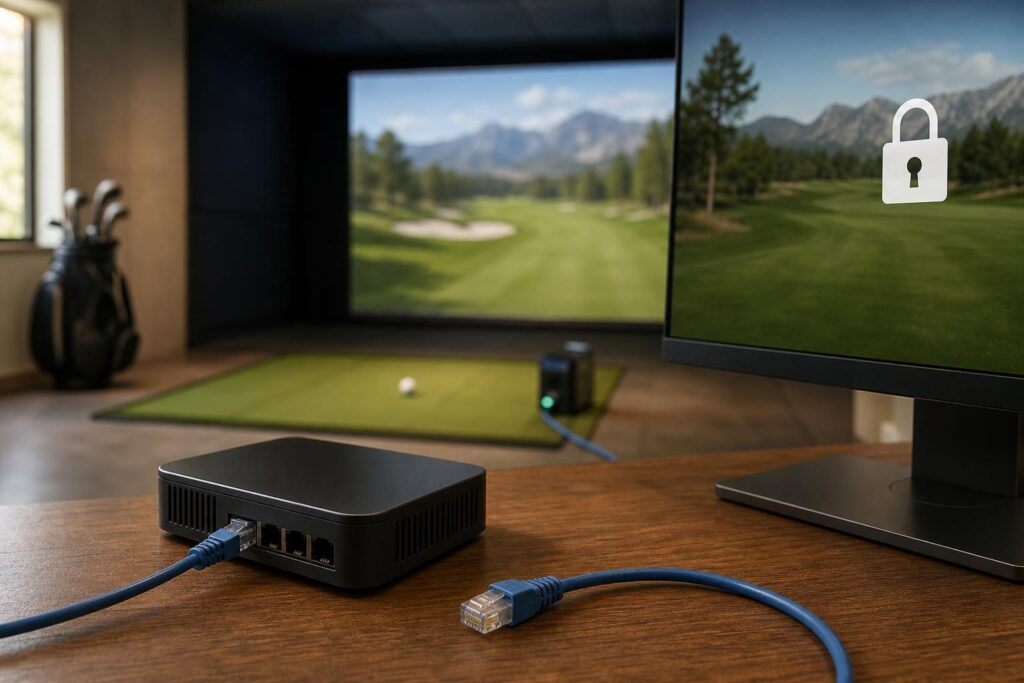
Some simulator functions can work without a continuous internet connection, but offline operation is specific to the software, license, and launch monitor integration. Do not assume that downloaded courses guarantee unrestricted offline play.
Internet access may be needed for:
- Initial installation and activation.
- Account sign-in or periodic license checks.
- Course downloads and updates.
- Online multiplayer, competitions, and leaderboards.
- Cloud-saved results or account synchronization.
There is also a difference between a local network and the internet. Your launch monitor may communicate with the computer over Wi-Fi even when no internet service is involved. Some connection arrangements can complicate simultaneous internet access.
If your simulator will be in a detached garage or another area with unreliable service, ask about offline behavior before buying. Confirm how long offline access lasts, which modes remain available, and whether the exact hardware connection works without internet access.
Test your intended offline setup before inviting guests or relying on it for a regular practice session.
8. Use a Simple Shortlist and Trial Process
Once compatibility and budget are clear, narrow your options to software that supports your main use case. Avoid choosing entirely from screenshots or course totals.
GSPro versus E6 CONNECT
This comparison often comes down to course preferences, the supported hardware pathway, PC requirements, and the exact E6 CONNECT package being considered. Compare equivalent access rather than a full subscription on one platform against a limited bundled license on another.
Awesome Golf versus E6 CONNECT
Start with how your household spends its time. Compare practice-screen clarity, casual challenges, local player setup, and the course experience. Neither platform’s broad reputation tells you whether its specific package suits your family.
A practical buying checklist
- Write down your exact launch monitor model and computer specifications.
- Confirm official compatibility and any required hardware membership.
- Choose your main priority: course play, focused practice, family games, or a balance.
- Compare included courses and features at the license level you would actually buy.
- Calculate initial and recurring costs.
- Check resolution-specific hardware guidance and offline requirements.
- Use an official trial or demonstration where available.
- Read cancellation, refund, renewal, and device-transfer terms.
During a trial, play several holes, hit short shots, try putting if supported, and explore the menus you will use regularly. A smooth everyday workflow matters more than an impressive opening screen.
9. Conclusion: Choose the Best Fit for Your Setup
The best golf simulator software combines confirmed compatibility, suitable performance, enjoyable content, and manageable ongoing costs. Start with your launch monitor, then compare the course library, practice tools, and games that match your household.
Before paying, verify the exact license, required memberships, computer requirements, and offline limitations. Getting those fundamentals right is the simplest route to a simulator you will enjoy using regularly.